Importing your library
Needle reads your music directly from folders on your Mac. There’s no separate import process — your library is built from the tags already embedded in your audio files.
Add a folder
Section titled “Add a folder”- Open Needle
- Click Settings in the bottom-left of the sidebar
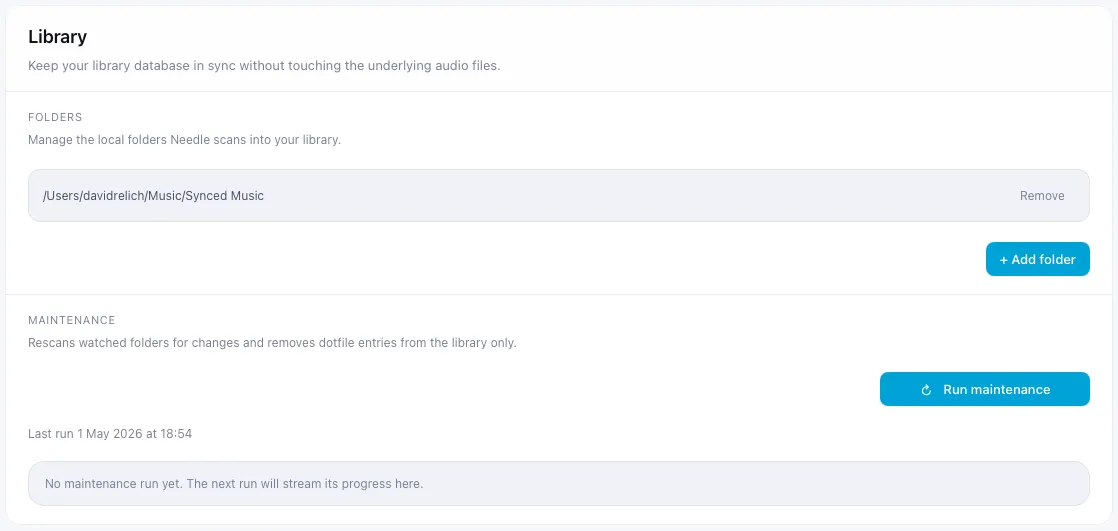
- Under Library, click Add folder
- Select the folder that contains your music and click Open
Needle recursively scans the folder and adds any supported audio files to your library immediately — no restart needed.
Adding more folders
Section titled “Adding more folders”Needle supports multiple library folders. Repeat the steps above to add as many as you like — each one is scanned and merged into your library.
Removing a folder
Section titled “Removing a folder”To remove a folder from your library, go to Settings → Library and click the remove button next to the folder. This removes the folder and its tracks from Needle’s database only — your audio files are never touched.
How Needle reads your files
Section titled “How Needle reads your files”Needle extracts metadata directly from your file tags using lofty ↗: title, artist, album, track number, genre, year, sample rate, and bit depth. Hidden files and dot-directories are automatically skipped during scans.
For the best experience, make sure your files are tagged correctly. MusicBrainz Picard ↗ and Mp3tag ↗ are both good tools for this.
Keeping your library up to date
Section titled “Keeping your library up to date”Run Maintenance from Settings to rescan your folders for changes and remove any stale entries from the database. Maintenance is diff-based, so your play history and added_at dates are preserved across runs. It never modifies your audio files.