
Playlists
Needle has two kinds of playlists: saved playlists you create yourself, and smart playlists generated automatically from your library and listening history. Both appear in the sidebar.
Smart playlists
Section titled “Smart playlists”Needle automatically maintains several smart playlists based on your collection and listening habits:
| Playlist | Description |
|---|---|
| Most played | Tracks you’ve played most frequently |
| Recently played | Tracks played in your last few sessions |
| Needs a first spin | Tracks in your library you’ve never played |
| Rediscover | Tracks you’ve played before but haven’t visited in a while |
| From your top genre | A focused mix from your most-listened genre |
Creating a playlist from the Tracks view
Section titled “Creating a playlist from the Tracks view”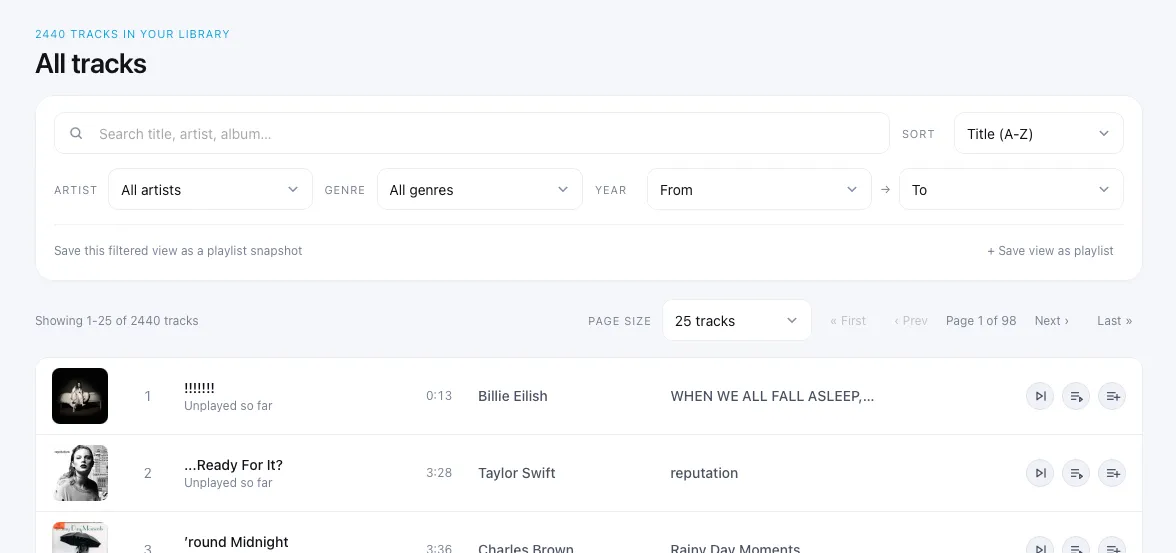
The Tracks view is the main way to build a playlist. Use the search bar and filters (artist, genre, year range) to narrow down the tracks you want, then save the result as a playlist.
When saving, Needle asks you to choose a playlist type:
- Snapshot — saves the current set of tracks as a fixed playlist. Adding new music to your library won’t change it.
- Auto-updating — saves the search and filter state, not just the tracks. Needle re-runs the filters whenever your library changes, so the playlist stays current automatically.
Creating an empty playlist
Section titled “Creating an empty playlist”Click + New playlist in the sidebar to create an empty playlist, then add tracks to it manually.
Adding tracks to a playlist
Section titled “Adding tracks to a playlist”Use the Add to playlist action on any track or album. You can add to an existing playlist or create a new one during the add flow.
Playlist actions
Section titled “Playlist actions”From any playlist page you can Play, Shuffle, Play next, or Add to queue.
Managing playlists
Section titled “Managing playlists”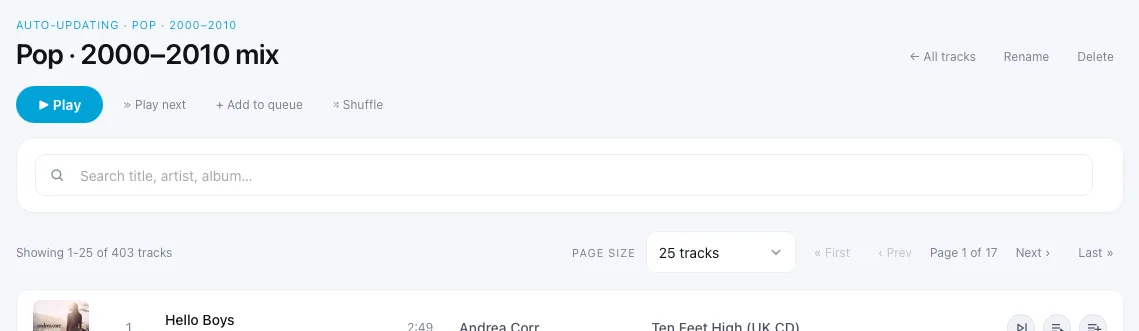
Click a playlist in the sidebar to open it, then use the playlist actions to rename or delete it, reorder tracks, remove individual tracks, or clear the whole list.